To check Google ranking for your website, use three sources: a quick search of your own, the Performance report in Google Search Console, and a daily rank check set to the country, language and device your customers use. Each one gives a different number because each one answers a different question. That is why your site can sit on page one when you search from your Dubai office, while a client in Riyadh cannot find it at all. Both results are real. They are just not the same view.
This guide gives UAE businesses and agencies a method they can repeat: three ways to check where you rank, why a search from your own browser in Dubai can mislead, how to read Google Search Console, and a checklist that tells you which number answers which question.
What are the three ways to check Google ranking for your website?
First, three terms. The SERP is the search results page, the page Google shows after someone searches. Your position is where your page appears on that page, counted from the top. Organic results are the unpaid results, as opposed to ads. When people talk about ranking, they usually mean your position in the organic results.
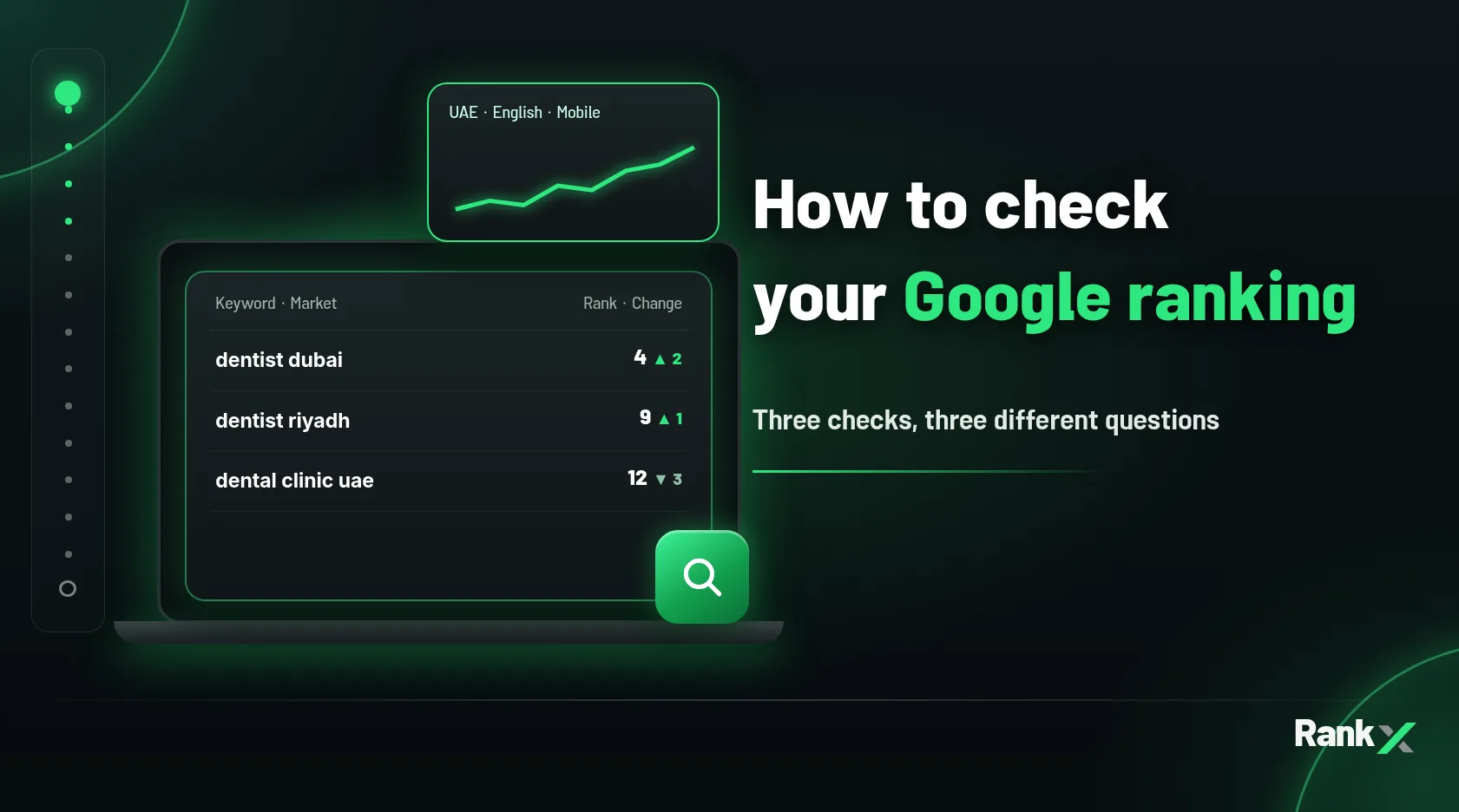
We recommend treating rankings as three separate checks. Each one answers a different question:
- Your own Google search. Quick and needs no setup, but it shows your own view of the SERP, which may not match your customers’ view.
- Google Search Console. Google’s own data about your site, reported as an average.
- A scheduled rank check in the market you sell in. A check set to a chosen country, language and device, repeated day by day so you see the trend.
Search Console is a tool from Google that helps website owners, developers and SEO professionals understand how their site is performing on Google Search. It is the natural place to start if you have never used an SEO tool. The sections below explain why each check gives a different number.
Why does a search from your own browser in Dubai mislead?
Google does not show everyone the same page. Even without personalisation, it uses context such as your location, your language and your settings to decide which results to show. Your device matters too. So a search from your own browser shows results for your own context. That may not match what searchers in another city, on another device or in another language see.
Take a Dubai agency that checks a client’s keyword from the office. The client sells to customers in Riyadh and Doha. The office search shows the Dubai view of the SERP, on a desktop, in the browser’s language. A customer in Riyadh searching on a phone can see a very different order. The agency could end up reporting a position that the client’s buyers never see.
Incognito mode is not a fix. A private window keeps some of your personal history out of the picture, but it does not change your location, your language settings or the device you use. Since those are the signals Google uses to choose results, an incognito search is still, in effect, a search from Dubai on your own computer.
Language matters too. In the UAE, people search in English and in Arabic for the same product. The two searches can return different pages, and your site may appear in one and not the other. If your client sells in both languages, it makes sense to check the English and the Arabic keyword separately. Arabic spellings can split results too, which we cover in Arabic keyword rank tracking.
How do you find your average position in Google Search Console?
Search Console only shows data for a site you have verified, which means you have shown Google that you own or manage it. If you are an agency, you will need access to the client’s verified site rather than relying on your own searches. Once you have access, follow these steps:
- Open Google Search Console and sign in
- Choose the property, which is your site
- Open the Performance report from the side menu
- Open the Queries table below the chart
- Switch on the Average position metric so it shows next to each query
- Add filters for Country and Device before you read the number
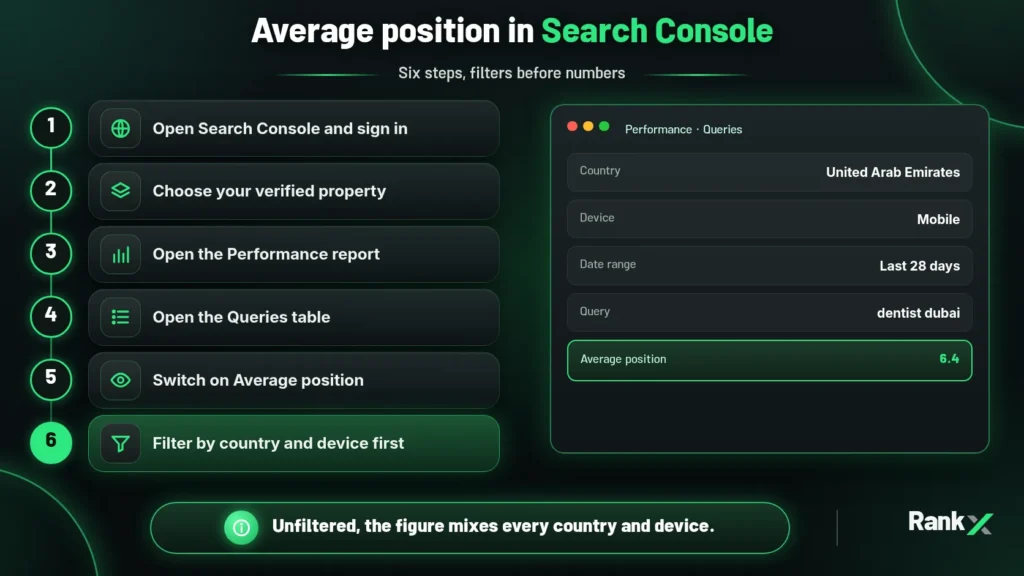
The last step matters. Without a filter, the figure mixes searches from every country and every device. Set the country to the market you sell in, such as the United Arab Emirates or Saudi Arabia, and the device to mobile or desktop. The average then reflects searchers in that market rather than everyone, everywhere.
What does average position tell you, and what does it not?
Average position in Search Console is the average position of your site’s top result across the impressions Google recorded. An impression is one time your site appeared in someone’s results. So the figure is not your definitive ranking at this moment. It is a summary of many searches.
Not your live rank: average position summarises many searches. Use it to spot broad shifts, not as a position to quote to a client.
This is why the number can surprise you. Suppose a keyword shows your page only on some days, or only on mobile. Each of those appearances goes into the average, while the searches where you did not appear add nothing to it. The average can then move even when your page has not changed, or look steady while your position on one device rises or falls. Treat it as Google’s averaged view, useful for spotting broad shifts, rather than a live position to quote to a client. We compare the two numbers in more detail in Search Console vs rank tracker.
How do you check rankings for a specific Gulf market?
The answer to the problems above is the same: decide where each keyword matters, then check that market instead of your own location. For every keyword, write down four things:
- Country: where the customers who search for it live
- Language: English, Arabic or both
- Device: desktop, mobile, or both if buyers use both
- Purpose: a quick look, an internal review or a client report
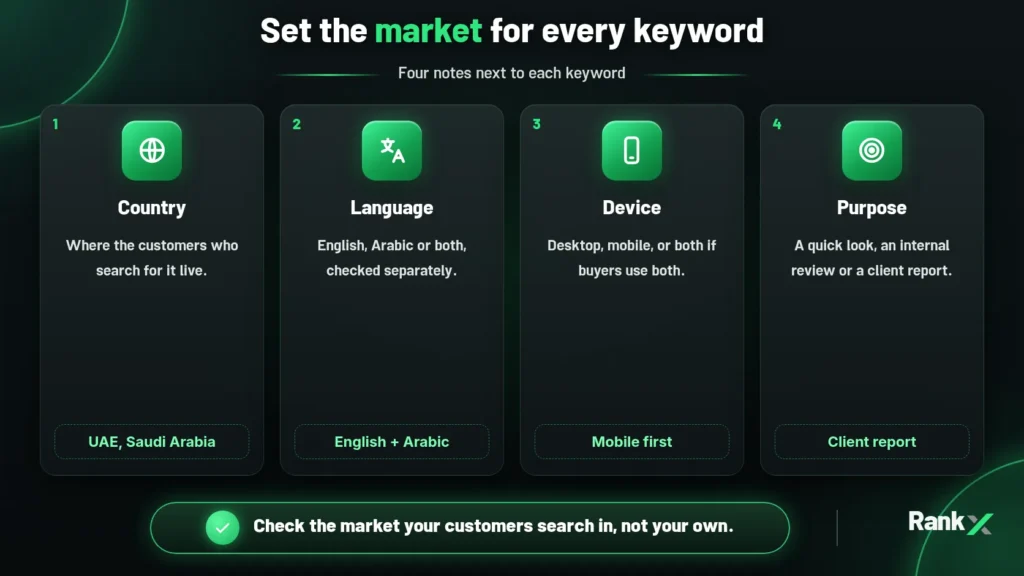
Take an Abu Dhabi retailer that sells across the GCC. Because Google uses location and language to choose results, its UAE ranking tells it little about Saudi Arabia. A sensible setup is to check the UAE and Saudi Arabia separately, each in English and in Arabic. That gives four views of the same keyword, and they can differ a lot.
Why track the trend instead of a single number?
Any single check is a snapshot. Rankings move, sometimes from one day to the next, so one result can catch a good day or a bad one. A check that runs every day in the target market shows the direction: is the keyword climbing, slipping or holding? For an agency, a trend is also easier to explain to a client than one number taken on one afternoon. Repeating the same check on a schedule is what rank tracking means.
This is the job a daily rank tracker does. In RankX, you add a domain, choose the Google market for it (country, language, desktop or mobile) and add your keywords. Checks run every morning and cover the top 20 results. Reports show positions over time, which keywords moved up or down, one visibility score for the whole site, and which competitors appear in the same results. Clients get a read-only share link or a PDF report, with your notes on the trend line, in English, Arabic or Persian.
Which method answers which question?
Here is the decision checklist that ties the method together. Use it whenever someone asks you where a site ranks, whether or not you use a tracker.
| Question | Method | What the number means |
|---|---|---|
| Is my page showing at all? | Your own Google search | Your own view, from your location, language and device |
| How does Google see my site overall? | Search Console, filtered by country and device | An average of your top result across recorded impressions |
| Is this keyword rising or falling in Saudi Arabia? | Daily check in that market | A day-by-day trend for one country, language and device |
| What do I send the client? | Daily check in the client’s market | A trend the client can follow over time |
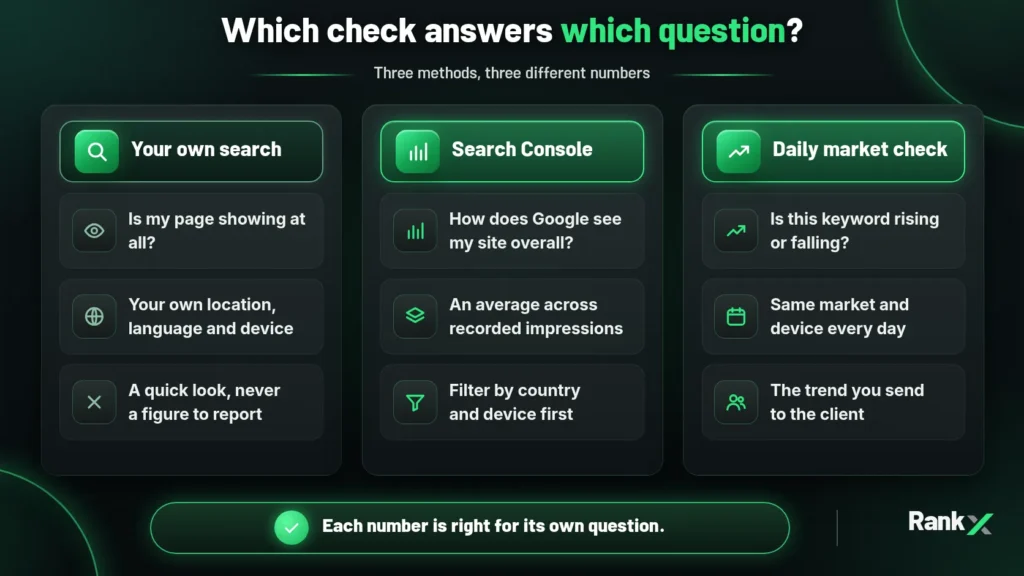
- Use your own search for a quick look only, never as a figure to report
- Use Search Console for Google’s averaged view of your verified site, filtered to the country and device you sell in
- Use a daily check in the target market for the trend and for client reporting
- Check English and Arabic keywords separately when you sell in both
Start with what you have today. Run one search, then open Search Console and filter by your main market and device. If the two numbers differ, you now know why. If you need the trend in a market you are not sitting in, set up a daily check there and read the direction, not a single day.
Frequently asked questions
Is there a Google tool that shows where my website ranks?
Yes. Google Search Console is Google’s own tool for website owners, and its Performance report shows the average position of your verified site for each query.
Why does my site rank differently when my client searches in Riyadh?
Google uses context such as location, language and device to decide which results to show, even without personalisation. A search from Dubai and a search from Riyadh can therefore return different pages.
Does incognito mode show my real Google ranking?
No. A private window may hide some personal history, but your location, language and device still shape the results you see.
Is average position in Search Console my current rank?
No. It is the average position of your site’s top result across recorded impressions, not your definitive ranking at this moment.